License Activation
How to activate your license for Smart Shooter
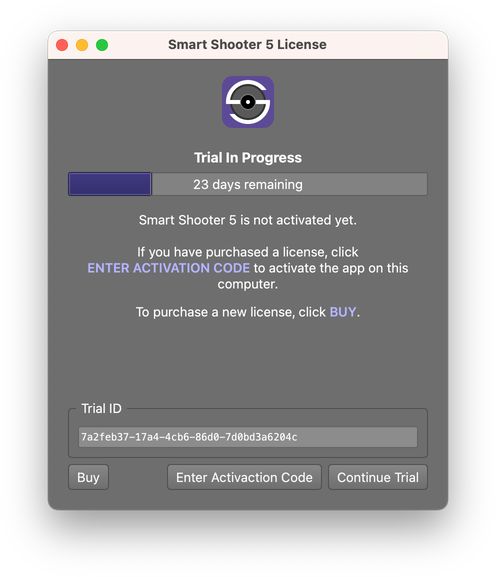
When Smart Shooter is first installed on a computer, it will operate in a trial mode lasting one month. During the trial period, all functionality is unlocked, so this time can be used to evaluate the app before making a purchase.
Activation Code
After purchasing a license for Smart Shooter, you will receive an email containing the activation code, which can be used to activate and unlock the app from trial mode. This email is sent to the same email address that you specified when making the purchase.
A license is for one person to use, and the activation code can be active on one computer at a time.
Note
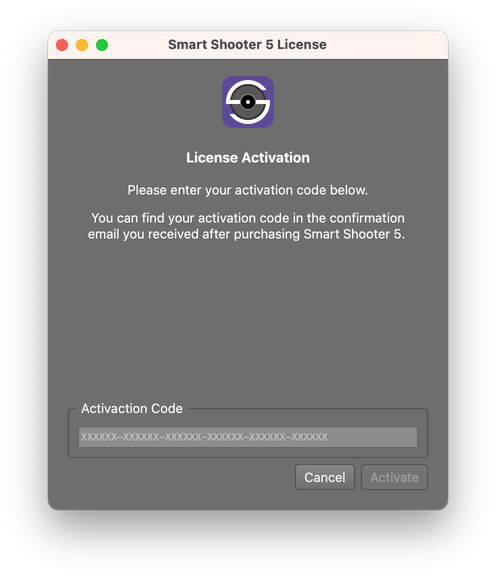
The format of the activation code is 36 hexidecimal digits, for example:
ABC012-DEF345-FED678-CBA901-ABC234-DEF567
This code can be entered into the License window to unlock the app.
Deactivating
If you ever need to deactivate the license, click Help -> Manage Licence in the top menu bar. You may need to do this if you want to install the software on another computer and use the same license there.
Note
You can view the license information and manage the activations/deactivations yourself at the customer portal website:
Using More Than One Computer
Each license is associated with a single person. If you need to move Smart Shooter to a different computer, you can do this yourself by deactivating the license on the old computer, and then activating it on the new one.
Sometimes one person needs to use the app on more than one computer at the same time — a studio machine and a laptop for location work, for example. If deactivating and reactivating the license each time doesn’t suit the way you work, please get in touch. We can usually increase the number of computers a license can be active on at the same time, so just let us know what you need and why.
If more than one person needs to use Smart Shooter, then each person needs their own license. That way everybody has their own activation code, and can activate and deactivate their own computers without affecting anyone else.
You can see how many computers your license covers, and which ones it is currently activated on, at the customer portal website. To ask us about any of this, please see Getting Help.
Firewall Settings
The app contacts the licensing server over the internet when you enter the activation code, when you deactivate the license, and periodically afterwards to check that the license is still valid. It also contacts the Kuvacode website to check whether a software update is available.
On a corporate or otherwise restricted network these connections can be blocked by a firewall, which will cause the activation to fail. If this happens, ask your network administrator to allow outgoing connections to the servers listed below. All of them are contacted over HTTPS on port 443.
Server |
Purpose |
|---|---|
|
Activating and deactivating the license, and checking that it is still valid. |
|
Registering your license details when the activation code is first entered. |
|
Checking whether a software update is available. |
|
Checking whether a software update is available (the check above is redirected to here). |
|
Downloading the software update itself. |
Only outgoing connections are needed, so there is no need to open any ports for incoming traffic.
Note
If your firewall is configured with IP addresses rather than server names, the current addresses used by the licensing server are published by Cryptlex, the licensing provider, at:
https://cryptlex.com/docs/sdks-and-apis/proxies-and-firewall