Name Policy
How to customise the filename when saving photos
Whenever the app detects that a new photo has been taken, it will assign that photo a unique filename. The actual filename to use is computed dynamically by the app, and is controlled by the current name policy. These options can be customised in the Options window under the Name Policy tab, as shown in the screenshot below.
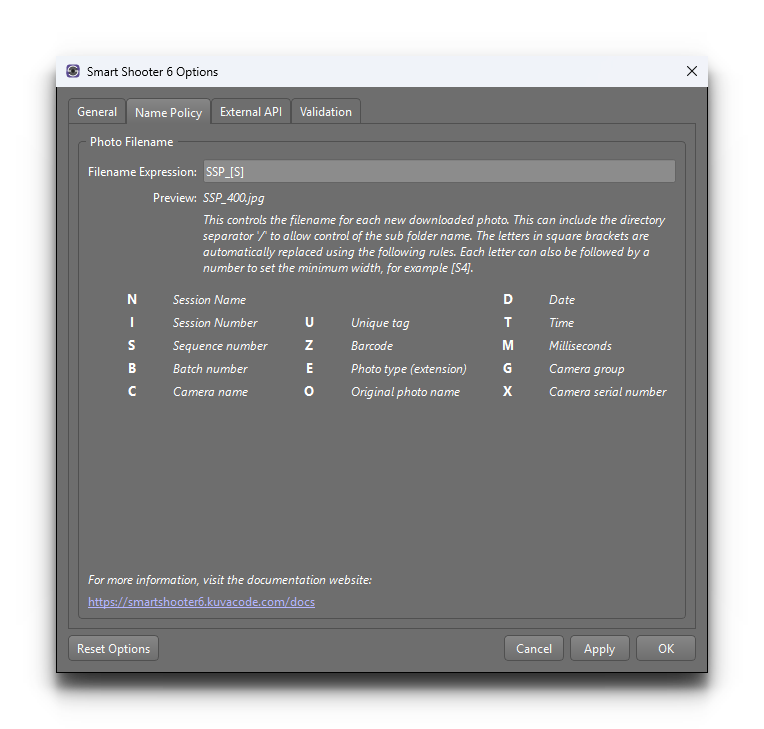
Filename Expression
The filename expression is the text that specifies how each new filename is computed. This text may contain special identifiers, as letters inside a pair of square brackets. These parts are automatically extracted and replaced with dynamic information, by following some rules for each letter.
For example, if the text contains [D] then this part of the filename will
be replaced with the current date. The full set of rules is shown in the table
below.
Letter |
Meaning |
Description |
|---|---|---|
N |
Session name |
A bit of text, that can be changed easily in the app’s UI. |
I |
Session number |
A number that can be manually incremented and decremented by clicking a button in the app’s UI. |
S |
Sequence number |
A number that is automatically incremented after each new photo is taken. Using this ensures that each photo has a unique filename. When the camera saves RAW + JPEG files for one exposure, both files use the same number. |
B |
Batch number |
A number that is associated with each camera, and automatically incremented whenever that camera takes a new photo. So effectively this is a per-camera sequence number. When the camera is set to save each photo to RAW + JPEG files with a dual format quality setting, this number will increment just once per exposure, so the RAW and JPEG files will use the same number. |
C |
Camera name |
Name of the camera that took the photo. |
X |
Camera serial number |
Serial number of the camera that took the photo. |
O |
Original photo name |
If the camera itself generated a filename, this contains it. |
E |
Photo file extension |
The file extension of the photo, in upper case and without the dot (for example JPG, NEF, CR2 etc). Use e for lower case. See File Extension. |
U |
Unique tag |
A unique bit of text, that can be changed easily in the app’s UI. |
Z |
Barcode |
The text from the last barcode that was scanned by the app. If the barcode is a vCard, see Barcode vCard Fields. |
D |
Date |
The current date in the format YYYYMMDD. |
T |
Time |
The current time in the format HHMMSS. |
M |
Milliseconds |
The millisecond part of the current time as a number between 000 and 999. This is always three digits, and a minimum width number has no effect. |
G |
Camera Group |
The name of the group that the camera belongs to. |
Note
If the filename computed is not unique, it may clash with an existing photo
file that has already been saved. If this happens, the app has a safety
mechanism to ensure no files are overwritten, see Overwriting Files.
So if the final filename has an unexpected _1 or _2 suffix, this is
the reason.
Quickly Changing Filename Options
The app UI has a dedicated Session window where this information can be quickly checked and edited, as shown in the screenshot below.
This allows you to change the [N] Session Name text and [U] Unique Tag
text, and set the [I] Session number, [S] Sequence number and [B]
Batch number, either by typing a new value or with the + and - buttons.
These changes take effect immediately and will be reflected in the filename for
any subsequent photos that are taken.
If the connected cameras have different batch numbers, a warning is shown next to the Batch number. Clicking Resync Batch Number brings them back in sync, using the highest batch number of the connected cameras.
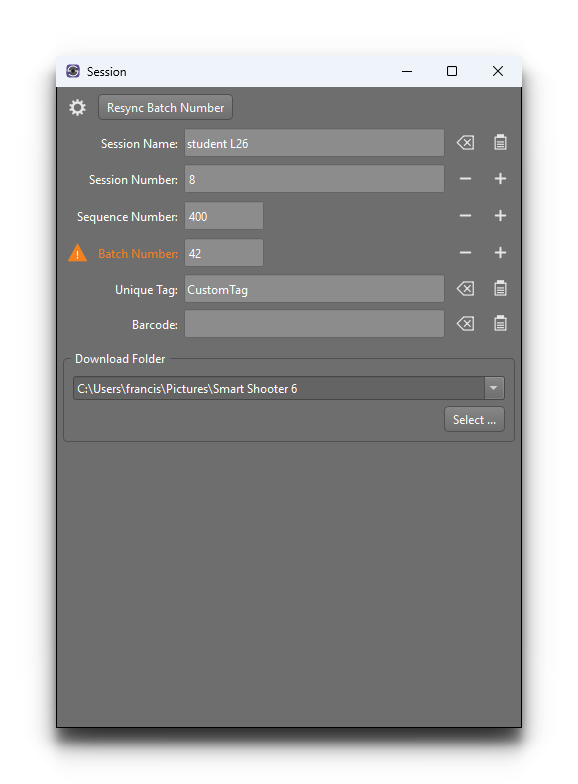
This window also shows the current Barcode information. The app has
the ability to scan photos for barcodes or QR codes, and extract the text from
them. Such barcode text can then be used as part of the filename by using
[Z]. For more information on how the barcode scanning works, see
Barcode Scanning.
Session Options
The Options button in the Session window opens the session options, which control when these values are changed automatically:
Reset Sequence Number resets the
[S]Sequence number to 1 when the app starts, when the session changes, or both.Reset Batch Number does the same for the
[B]Batch number.Clear Text Fields clears the Session Name, Unique Tag and Barcode when the app starts, or when the session changes.
Autofill From Clipboard copies any new text on the clipboard into the Session Name, the Unique Tag, or both.
Allow spaces in filename keeps space characters in the filename, instead of replacing them with
_. See Invalid Characters.
The session changes whenever the Session Name, Session Number, Unique Tag, Barcode or Download Folder is changed in the Session window, including when a new barcode is scanned. Clear Text Fields only reacts to some of these: changing the Session Name clears the Unique Tag and Barcode, and changing the Session Number clears the Session Name, Unique Tag and Barcode.
Using Subdirectories
The filename expression can also include the directory separator /. This
allows one or more subdirectories to be included in the final filename. The
final filename will always be relative to the current Download Folder,
which can be set in the Session window or the Options window.
Using Camera Generated Name
Although the [O] Original photo name should contain the filename that was
generated by the camera, it only does this when using the Card Storage mode.
If the Storage mode is set to Disk or Both, then the camera will not
provide information about the filename it generated, and hence the app
will end up using text such as IMG_0000 instead.
Setting Camera Names
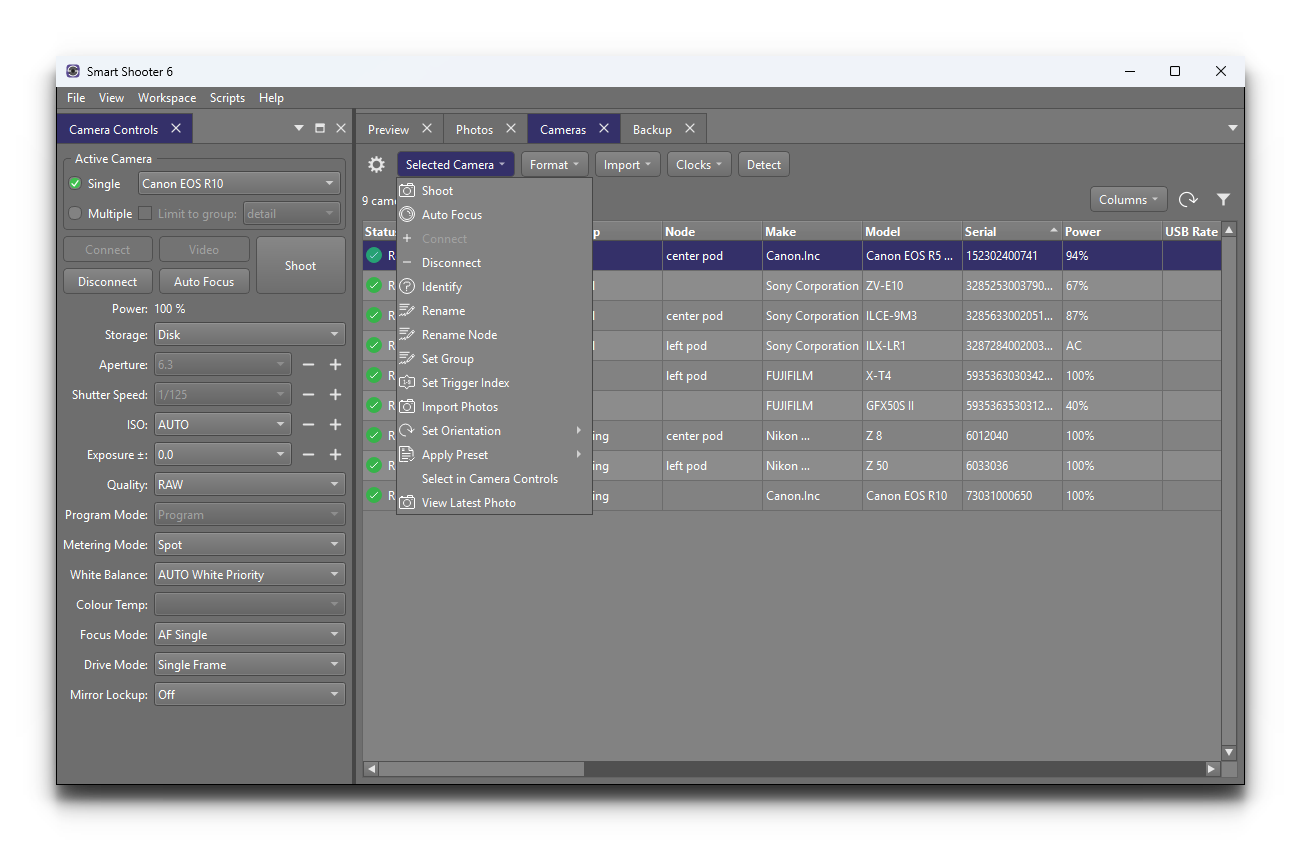
The [C] camera name is extremely useful when using multiple cameras, as
this allows the filename of each photo to contain the name of the camera that
took the photo. For each camera that is connected, the app
will store a name for the camera. This name is associated with the camera’s
serial number. The name can be customised in the camera table UI, by
right-clicking the camera as shown below:
Formatting Options
Each letter in square brackets can be followed by an optional number, which
will then control the minimum width of the replacement text. For numbers, the
number will be padded with extra leading 0’s. For text, it will be padded
with extra trailing _’s (underscore).
For example, if the current sequence number is 23, then [S] will be
replaced with 23, whereas [S4] will be replaced with 0023. If the
camera is named “left”, then [C6] will be replaced with left__.
The [D] and [T] (date and time) letters can also take an extra
character, which is then used as a separator between the date or time
components. For example, if the current date is 20th August 2011, then
[D] will be replaced by 20110820, whereas [D-] will be
replaced by 2011-08-20.
Extended formatting for date/time
The [T] letter also has an extended option, to allow extra customisation
of how the date/time is generated. After the T character you can specify
an arbitrary string, which is then passed to the standard strftime() function
for formatting. For example [T%A %d %B %Y] will pass the string
%A %d %B %Y to strftime(), which will format it as
Saturday 20 August 2017.
Note
For more information on what can be handled by strftime():
File Extension
The file extension is added to the end of the computed filename
automatically, so the filename expression does not need to include it. By
default the app uses the extension of the file sent by the camera, so whether
it is upper or lower case depends on the camera (for example .JPG or
.jpg).
To choose the case yourself, end the filename expression with .[e] for
lower case or .[E] for upper case. For example, [D]_[S4].[e] gives
20110820_0128.jpg, even if the camera sent IMG_0001.JPG.
[E] and [e] can also be used elsewhere in the filename expression, for
example [E]/[S4] saves RAW and JPEG files into separate subdirectories,
such as NEF and JPG. In that case the extension is still added to the
end of the filename as usual.
Barcode vCard Fields
A barcode or QR code can contain a vCard, which is a contact card with fields
such as a name, email address and phone number. If the last barcode scanned is
a vCard, then [Z] on its own is replaced with the text VCARD, rather
than the whole card.
To use a single field from the vCard, put the name of the field after the
Z. For example, [ZFN] is replaced with the contact’s full name, and
[ZEMAIL] with their email address. So if the full name is “Jane Smith”,
then [ZFN]_[S4] gives Jane_Smith_0128.jpg.
Field names are not case sensitive, so
[Zfn]is the same as[ZFN].If the vCard contains the same field more than once (for example several
TELphone numbers), the first one is used.If the vCard does not contain the field, or the barcode is not a vCard, the field is replaced with nothing.
Use
FNrather thanNfor the name. TheNfield holds the parts of the name separated by;characters, and these are kept in the filename.A field cannot be combined with a minimum width number.
Invalid Characters
Any invalid characters in the computed filename will be replaced with an
_ (underscore) character. This includes the : (colon) character.
The space character is also replaced, unless Allow spaces in filename is
turned on in the Session Options. When it is turned on,
spaces are kept, and text is padded with spaces instead of _’s (see
Formatting Options).
Examples
The following table shows some examples of the filename expression, and what
the resulting computed filename would be. This assumes the photo taken is a
JPEG saved with a .jpg extension, that the current sequence number is 128,
the current batch number is 23, the camera that took the photo is named
“centre”, the current unique tag is “modelX”, and that the current date is 20th
August 2011.
Filename Expression |
Computed filename |
|---|---|
SSP_[S4] |
SSP_0128.jpg |
[D]/[U]_[S4] |
20110820/modelX_0128.jpg |
[D]_[U]/[C]_[B] |
20110820_modelX/centre_23.jpg |
Overwriting Files
The app has a safety mechanism so that it will never overwrite an
existing file. This guards against the accidental loss of photos. Whenever the
app is about to save a photo, it first checks whether there is an existing file
with the same filename. If it finds an existing file, then it will append a
_1 to the end of the filename and then try again. If that new filename also
already exists, then it will append a _2, and try again, and continue to
try with incrementing number suffixes.