Photo Download
How to control and automate downloading photos
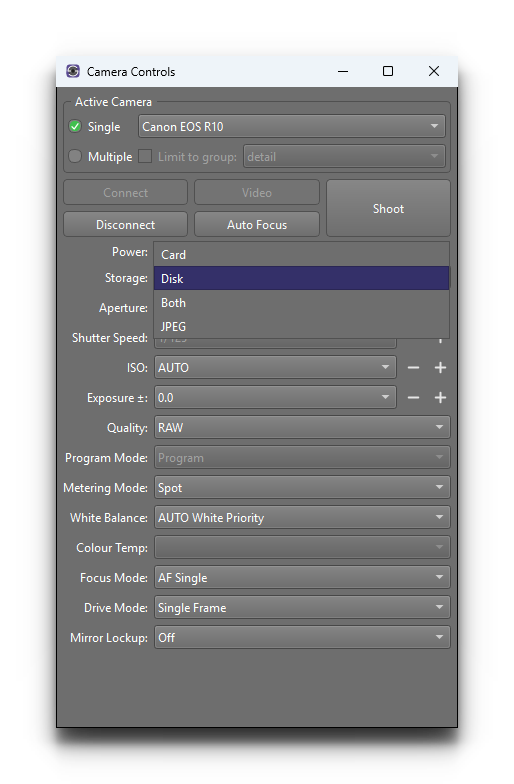
When a new photo is taken, the actual location of the photo file is determined by the Storage camera setting. This provides control over where the photo is initially saved, and whether it is automatically downloaded. This setting has four possible values:
Storage |
Description |
|---|---|
Disk |
The photo is not saved to the camera’s memory card, but instead is immediately downloaded and saved to the local computer disk. |
Card |
The photo is saved to the camera’s memory card, and not automatically downloaded. |
Both |
The photo is saved to the camera’s memory card, and also immediately downloaded and saved to the local computer disk. |
JPEG |
The photo is saved to the camera’s memory card. If the photo is in JPEG format it is also immediately downloaded and saved to the local computer disk. |
Once the photo is downloaded it will be automatically viewed in the Preview window.
The Storage camera setting can be changed in the Camera Controls window as shown below.
Manual Download
For each new photo that is taken, the app will automatically detect this and query the camera for information about this photo. The app will create a new Photo entry, which will then be visible in the Filmstrip window and the Photos table.
For photos that have not been downloaded yet and are currently on the camera’s memory card, there are a few ways to begin the download. The screenshot below shows the table of photos. Above the table is the Download button, whose menu includes Download all photos, which will begin download of all such photos.
The screenshot also shows the context menu when a photo is right-clicked. Selecting the Download action from this menu will then download the currently selected photo.
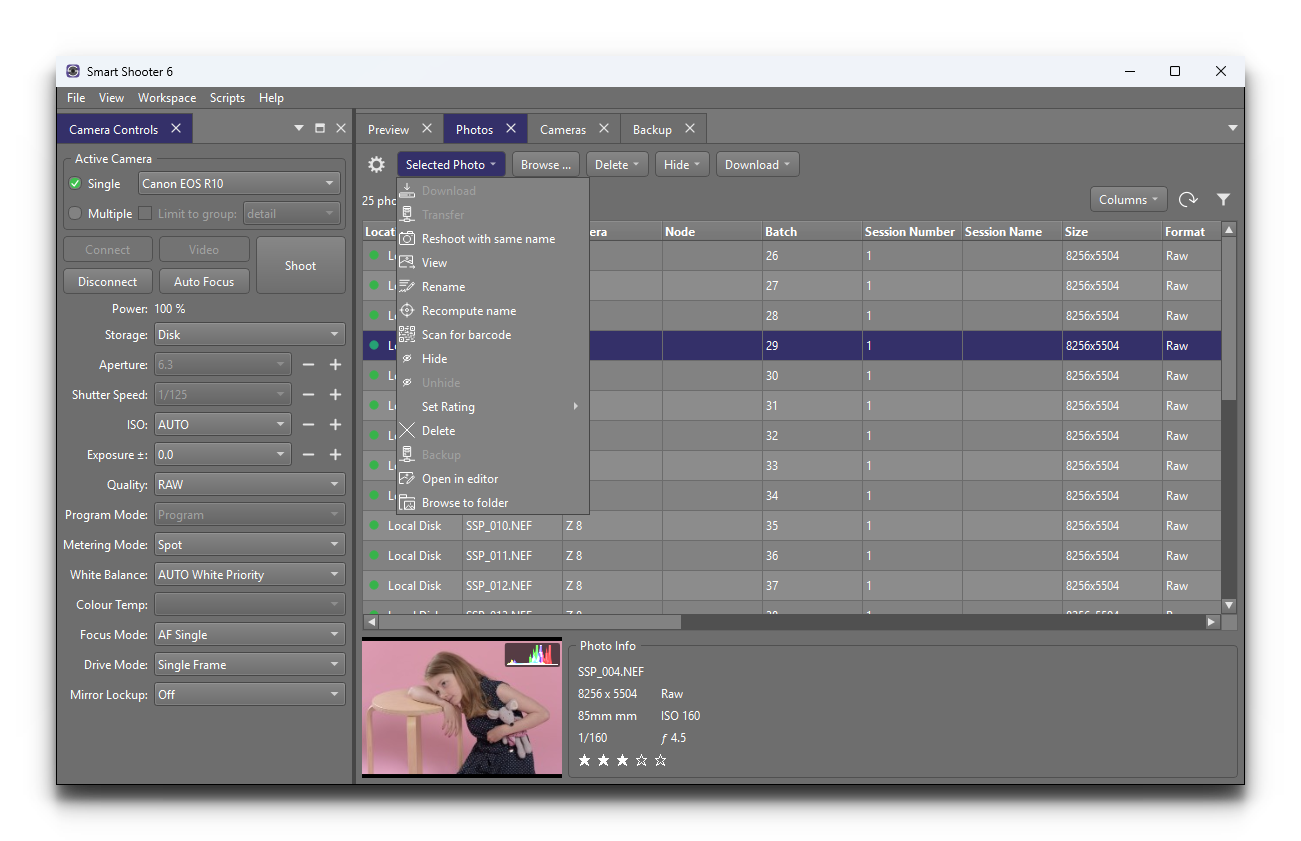
The table has a column labelled Location. This shows the current location
of each photo. If the photo has not yet been downloaded then the location will
be Camera. Once a photo has been downloaded and saved to the local
computer disk, then the location will be Local Disk.
Shooting RAW + JPEG
When shooting in dual RAW + JPEG mode, the camera will save each photo as both a RAW file and a JPEG file.
The RAW photo and JPEG photo of a single exposure are assigned the same Sequence number and the same Batch number. So depending on how the options are configured for filenaming — for example whether the filename includes the file extension — the RAW and JPEG photos may be given the same or different filenames. For more information on how this numbering is used for photo filenames, see Name Policy.
Setting a default
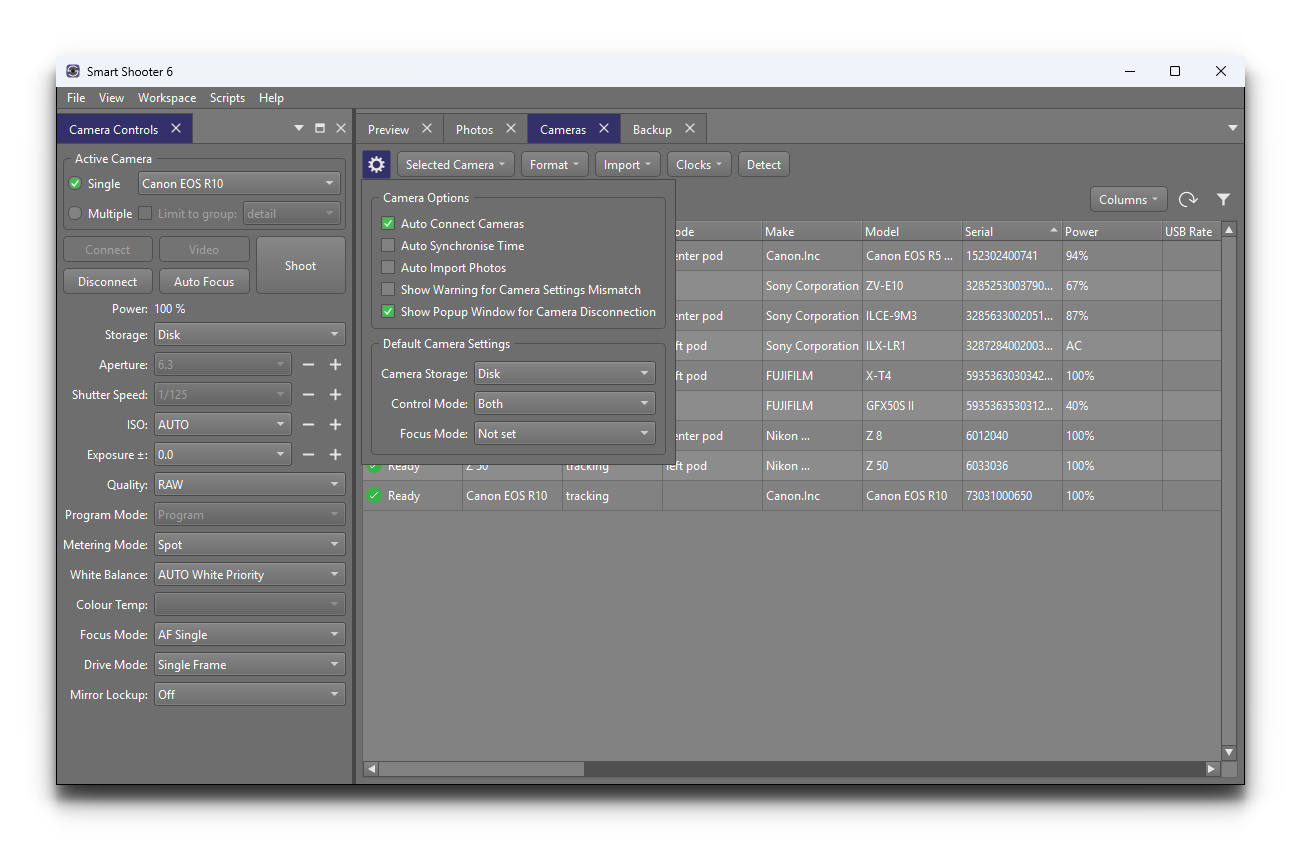
When a camera is first connected to the app, the Storage mode will
be set to a specific value. This defaults to Disk, but there is an option
to customise this. In the Cameras window, click the options (gear) button
to open its menu. Under the Default Camera Settings section there is a drop
down box labelled Camera Storage, which sets the default Storage
mode applied to each newly connected camera.
Adding Metadata to Photos
The app can write extra information into the metadata of each photo as it is downloaded. The information is stored inside the photo file itself, so it stays with the photo even if the file is later renamed or moved, and it can be read by other software that shows EXIF / XMP information.
To turn this on, in the Photos window click the options (gear) button and tick Add Metadata to Photos in the Photo Metadata section. This is turned off by default.
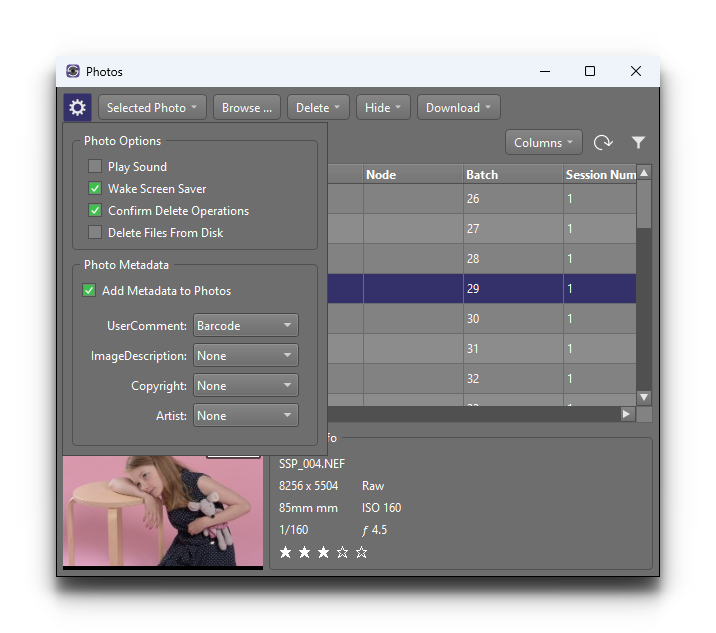
Below the checkbox there is a list of the metadata fields that the app can write. For each field, choose what information to put in it from the drop down box:
Value |
Description |
|---|---|
None |
The field is left untouched. |
Barcode |
The most recently scanned barcode text. For more information, see Barcode Scanning. |
Session Name |
The current Session Name, as set in the Session window. |
Unique Tag |
The current Unique Tag, as set in the Session window. |
Camera Name |
The name of the camera that took the photo. |
Camera Group |
The name of the group the camera belongs to. |
The fields that can be written are UserComment, ImageDescription, Copyright and Artist. By default the barcode is written to UserComment, and the other fields are set to None.
Each value is the one current at the moment the photo is downloaded — the
same value that would be used for the matching part of the filename ([Z],
[N], [U], [C] or [G]). For more information, see
Name Policy.